Canva is a popular, well-used online graphic design tool. The app launched in 2013, with people of all ages being able to use it.
Canva is used for many different things. It enables users to create posters, presentations, videos, social media content, build resumes, photo collages, schedules, logos, and so much more.
The app is also free to use, as Canva’s pricing page states, “No cost, just creativity.” This allows users to use their creativity with no cost, easy access, and unique tools. They do have Canva Pro, which costs $15 per month or $120 per year and unlocks new, unlimited tools for advanced users.
Hershey High School’s librarian, Ms. Henning, shares her thoughts on Canva by saying, “I use it pretty much everyday for library posters, invites, and slideshows.”
Hershey High School seniors share their thoughts on Canva. Senior, Julia Aluquin said she “generally [doesn’t] know what [she’s] going to do without Canva Infinity next year.” Hershey not only allows students to access Canva but also gives them Canva Pro to unlock unique features.
Another HHS senior, Addi Sheppard, said, “I love it, I use it every single day.” Most high schoolers can relate to these seniors, since data show that over 100 million to 120 million students use Canva monthly.
Ms. Harmer, the Director of Communications & Relations at DTSD, also uses Canva daily. She states “Canva has significantly sped up my workflow when creating graphics, presentations, and print materials for the district. It makes it easy to store and quickly access our branding resources and incorporate them into social media and staff materials. While I used Adobe products throughout university, Canva is much more user-friendly for everyday use.”
Now you know the significance of Canva, let’s get into how to use it and all its features.
First, download the app either through the App Store or the Canva website. After you download the app, log in so that all your projects can be saved properly. Whenever you successfully log in, you will be brought to the main home page. This is where you will see the search bar, then below that, the different things you can create, and your recent designs.
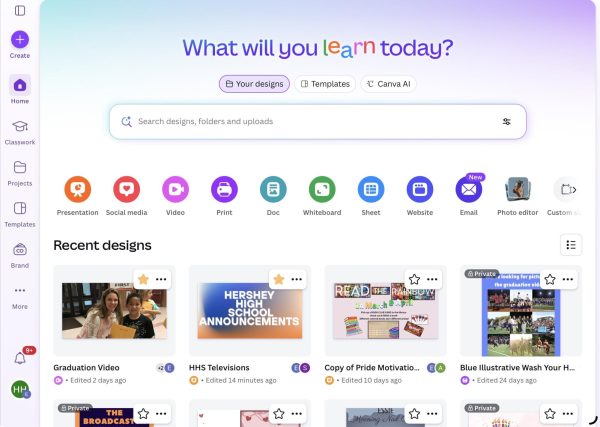
On the left hand side, you will see create, home, classwork, projects, templates, brand, and more. If you tap on “create” it will take you to a section that has all the different things you can make. I would use this section if you want to create something specific or if you want to search up something.
The “template” section is also another good spot to explore the different things Canva has to offer. This section looks familiar to “home” but allows users to explore and discover Canva.
The last section I’ll discuss is the “project” section. This is where all your designs will be saved. You can also look up your projects by using the search bar on the top.
Now, I’ll be briefly discussing how to create a project. Each design is different but they all use similar tools. As a high school student, I typically use the slideshow, presentation, or video option.
First, click on the project you wish to use. After you choose your design you will see on the left hand side; templates, elements, text, camera roll, uploads, tools, projects, apps, magic media, audio, video, background, captions, and Google Drive. These tools will help any user to achieve their perfect design. At the bottom of the page will be either your videos, pictures, or slideshows. If you tap on a specific thing you can use the three dots to edit, copy, hide, or to delete a page.
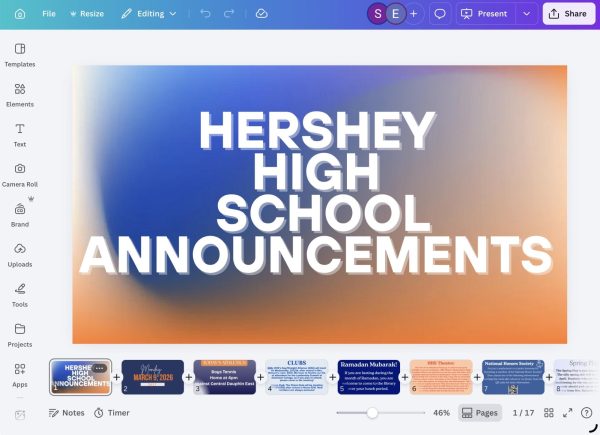
If you’re working on a poster, logo, or photo collage it will have similar tools but a different layout. It really all depends on what you’re creating and how you use the app.
That is a quick summary of the layout of Canva and the basic tools within a project. If you have any more questions or need more in detail information visit Canvas help desk.
With all of this being said, I highly recommend anybody that needs a good online design maker to download Canva and try it out. It has helped me with a lot of school assignments and even with my Communications Internship here in Hershey. I use Canva every day, whether on my iPad or my phone, it has come into my daily routine. I’m excited to take Canva into my future, allowing my creative side to come out.